

Description
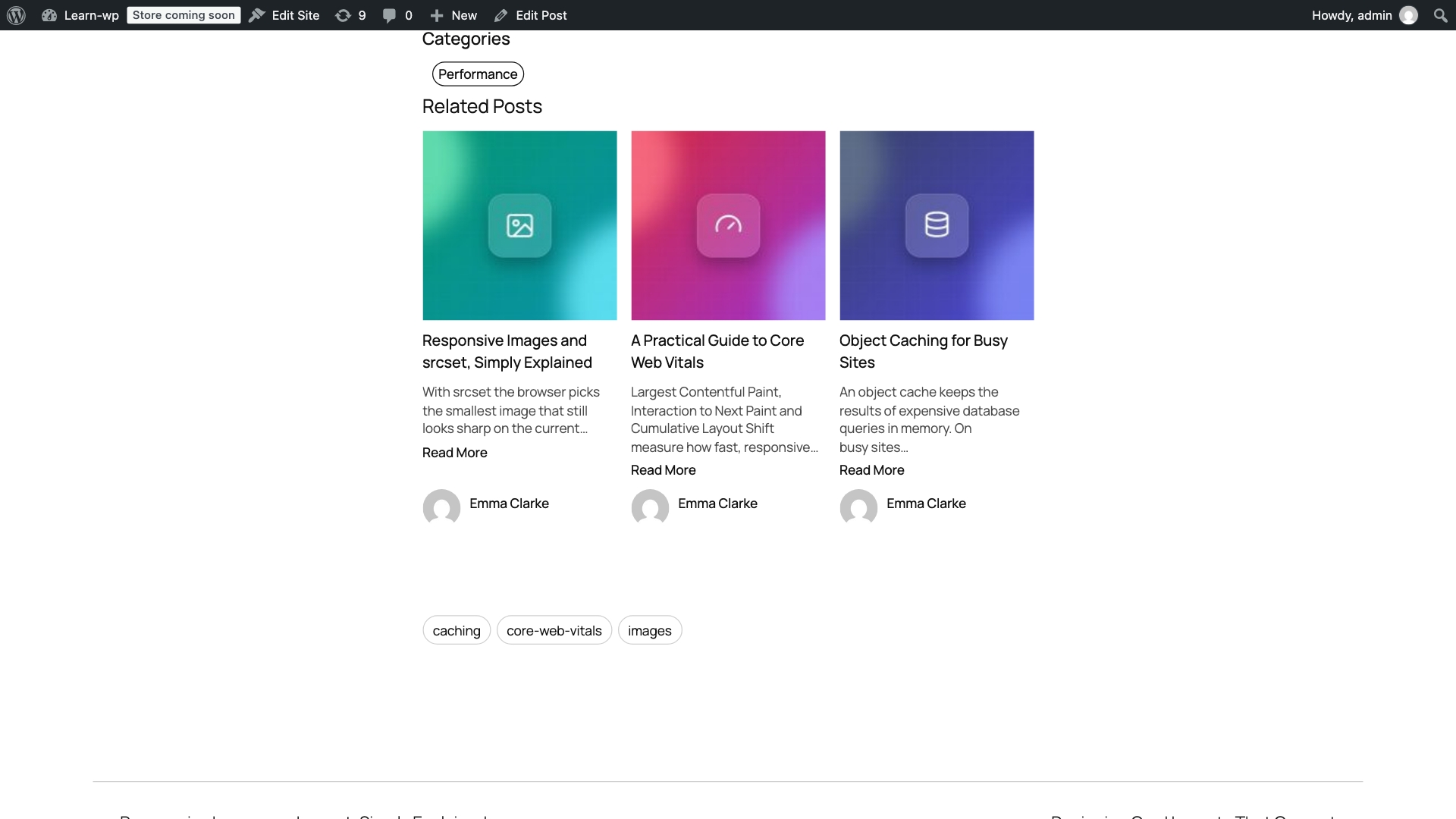
SoftIcon Related Posts shows your readers what to read next. It finds similar posts that share categories, tags or any custom taxonomy with the current article, ranks them by relevance, and displays them below your content in a clean, responsive grid, list or minimal layout.
Every related post is an internal link. More internal links help visitors discover more of your content, keep them on your site longer and help search engines understand how your articles connect.
It works the moment you activate it: related posts appear below every post with no setup. When you want more control, use the settings page, the Related Posts block, the shortcode or the sidebar widget.
Video overview
More tutorials: setup, the block, layouts and design, smart matching, pages and WooCommerce and every setting explained. Or watch the whole playlist.
Why choose SoftIcon Related Posts?
- Works instantly – activate and related posts appear under every article.
- Actually relevant – “Most relevant” ranks posts by how many tags and categories they share, so the best match comes first.
- You stay in control – hand-pick related posts for any article; the remaining slots fill in automatically.
- Fast and lightweight – built-in caching, responsive lazy-loaded images, and only one small stylesheet on the front end. No JavaScript on the front end.
- Looks like your site – inherits your theme colors and fonts, including dark themes.
- Privacy friendly – no visitor tracking and no cookies. The optional opt-in for update emails is off unless you allow it.
Smart related posts
- Related posts by category, by tag, by both, or by any shared taxonomy
- Order by most relevant, random, latest, recently updated, most commented or title
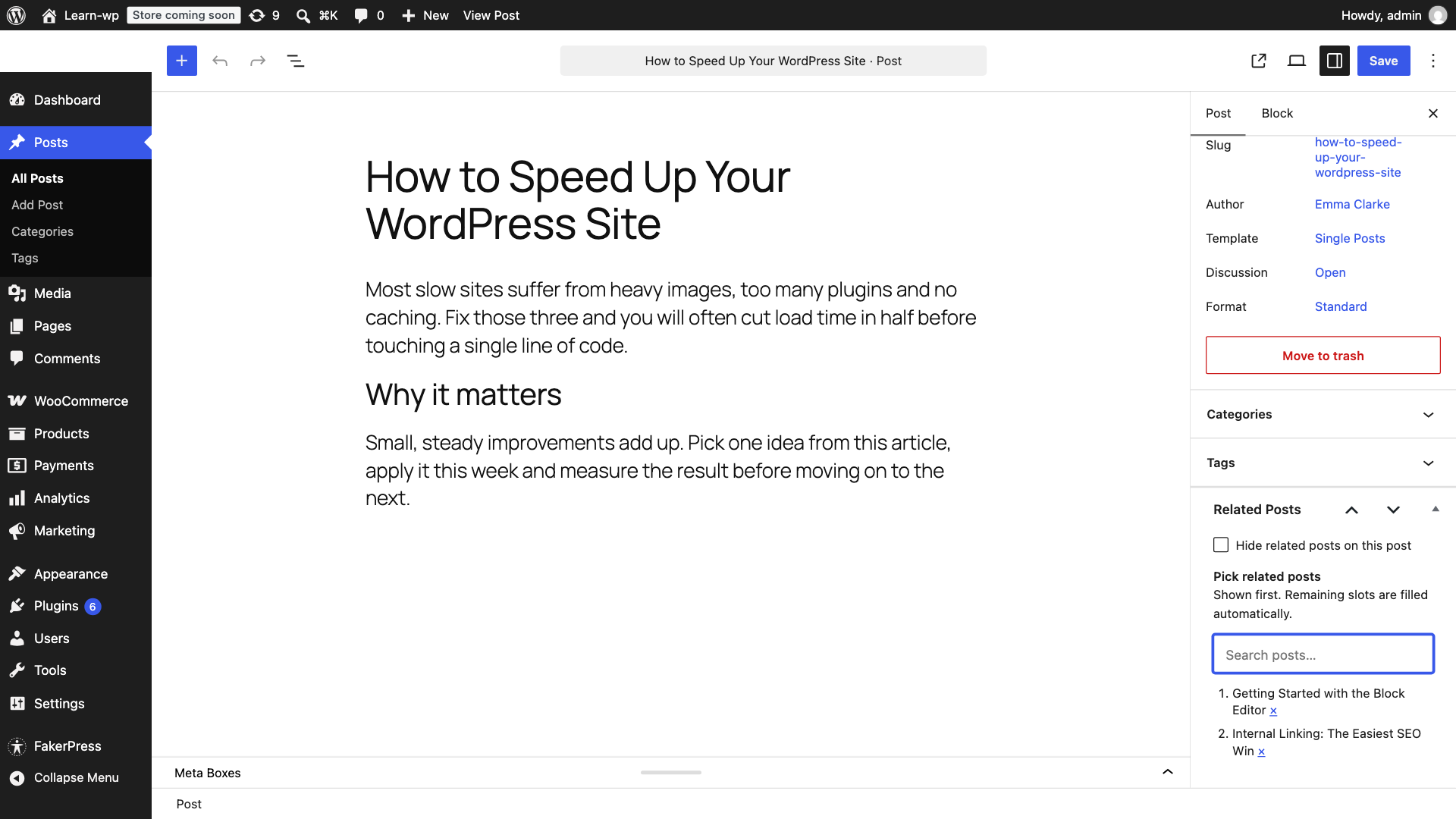
- Hand-pick related posts per post from the post editor
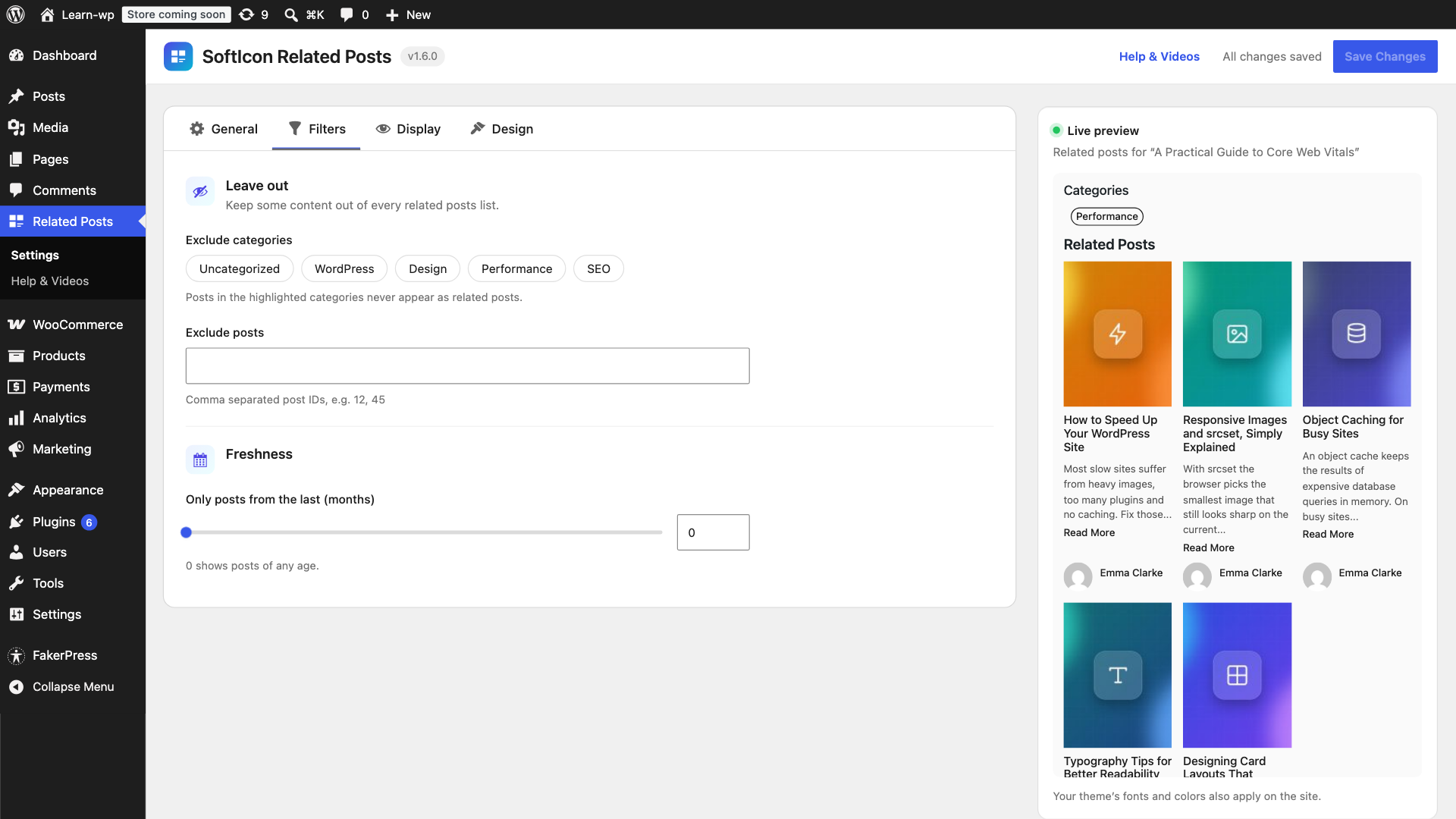
- Exclude categories or individual posts
- Only show posts from the last N months, so old content does not crowd out new articles
- Hide related posts on any single post
Related posts block, shortcode and widget
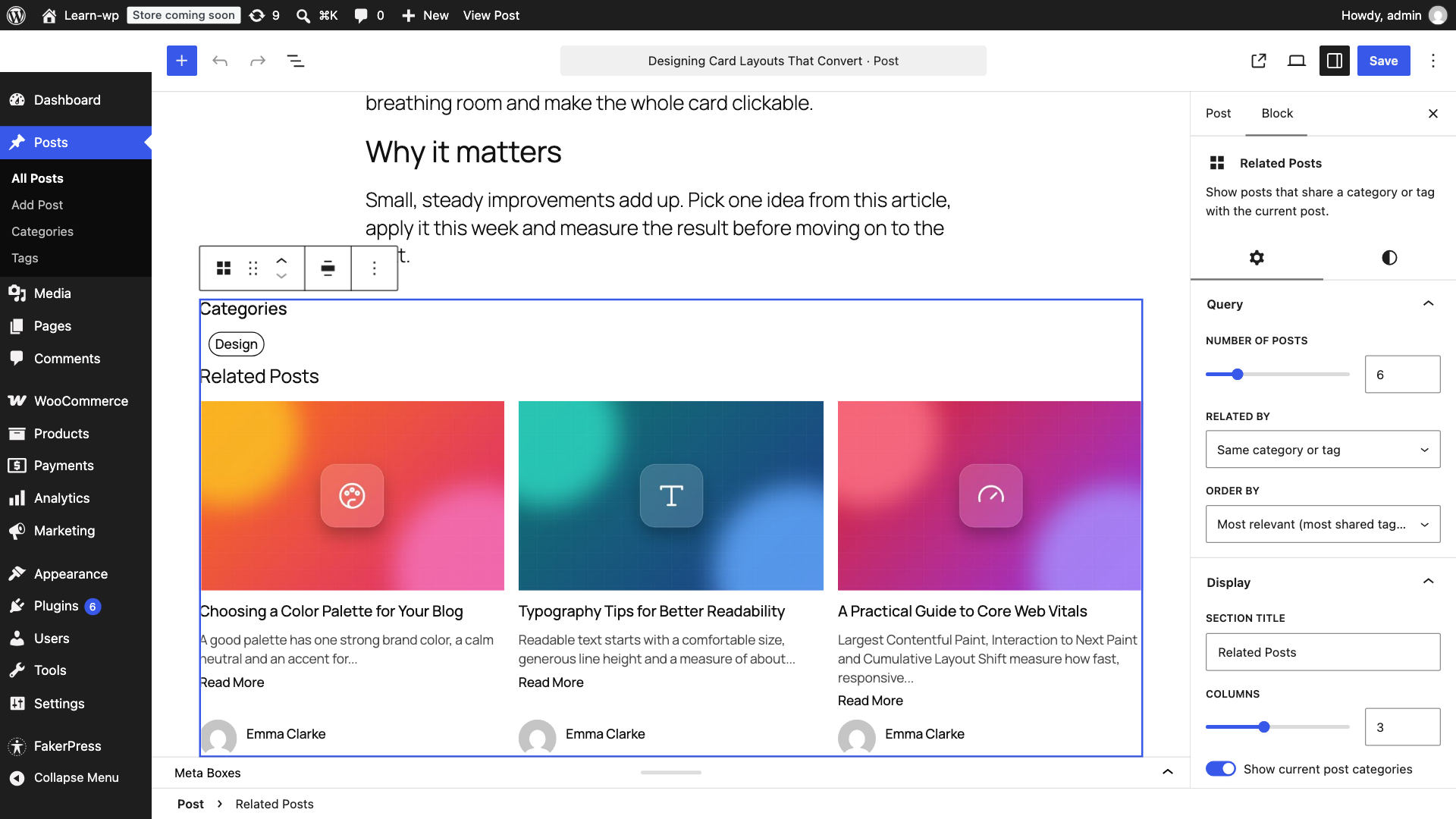
- Related Posts block for the block editor with a live preview and sidebar options
- Works in block themes and Full Site Editing: add the block once to the Single Posts template
- Shortcode
[softicon_related_posts]with every option available as an attribute - Classic sidebar widget for classic themes
- Show related posts before the content, after the content, or only where you place them
Layouts and design
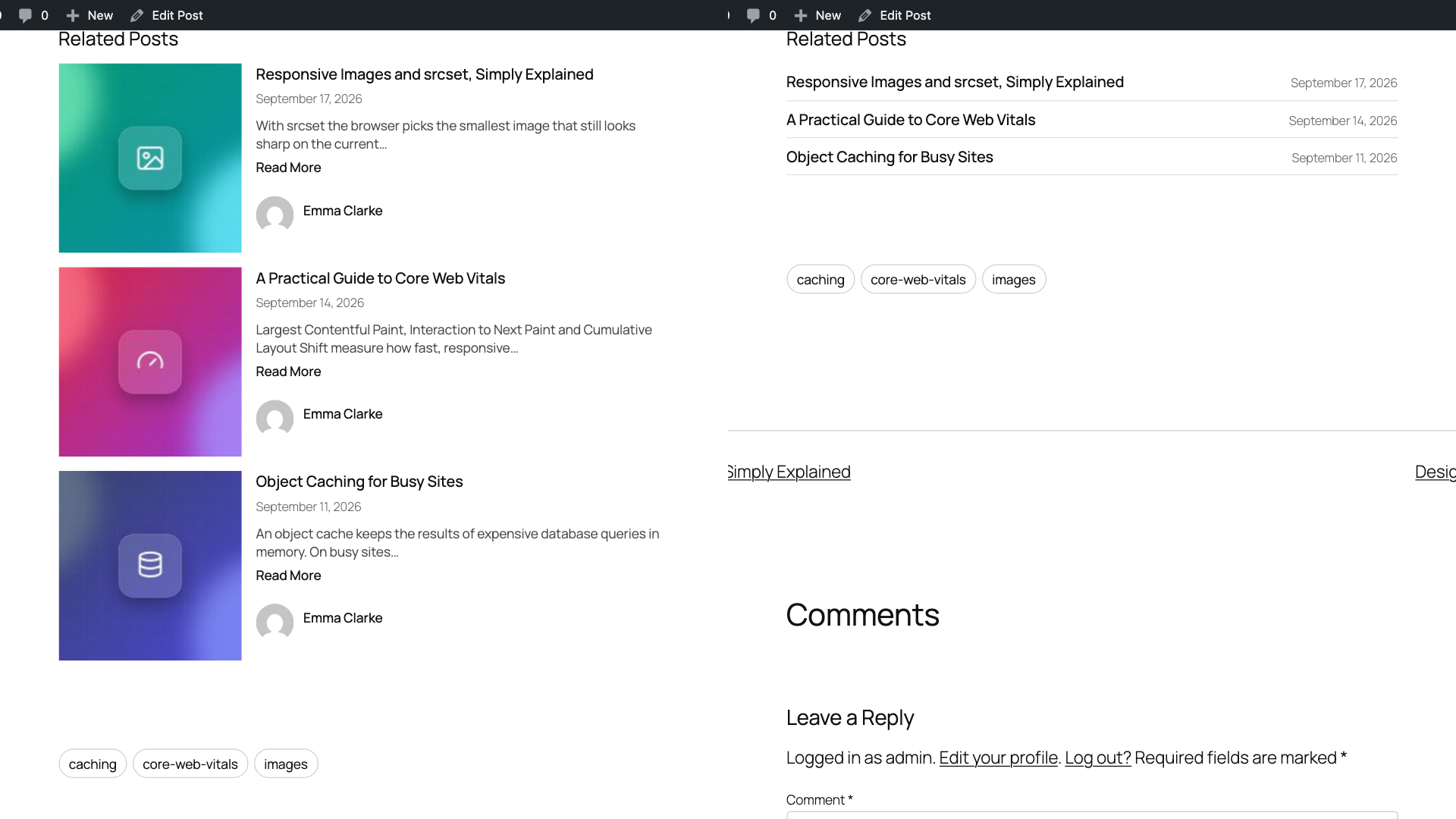
- Grid, list (image on the left) and minimal (titles only) layouts
- Responsive columns: 1 to 6 on desktop, automatically fewer on tablets and phones
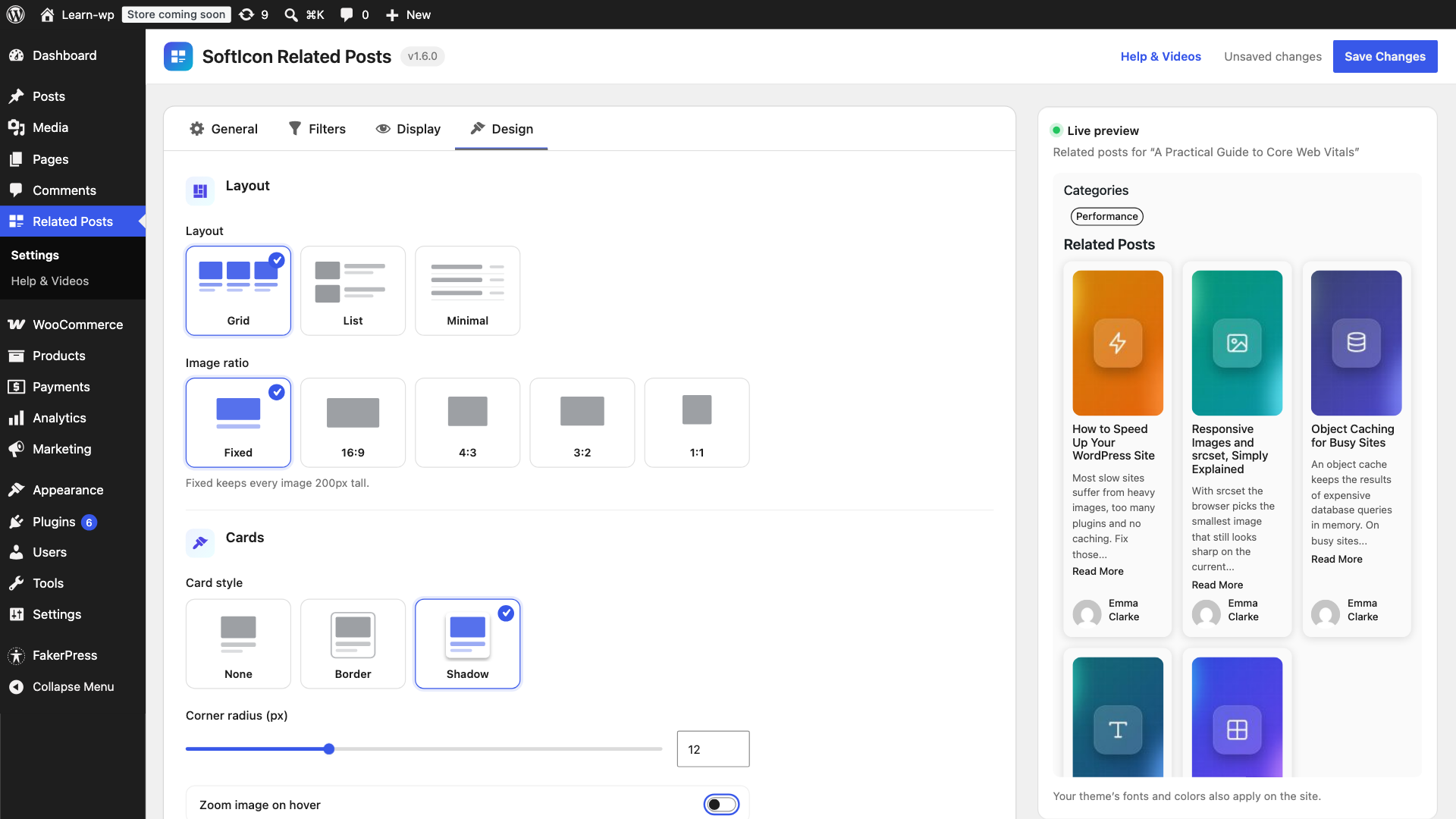
- Image ratio (16:9, 4:3, 3:2, 1:1 or fixed height), card border or shadow, rounded corners and hover zoom
- Title, text and card background colors, or leave them empty to use your theme colors
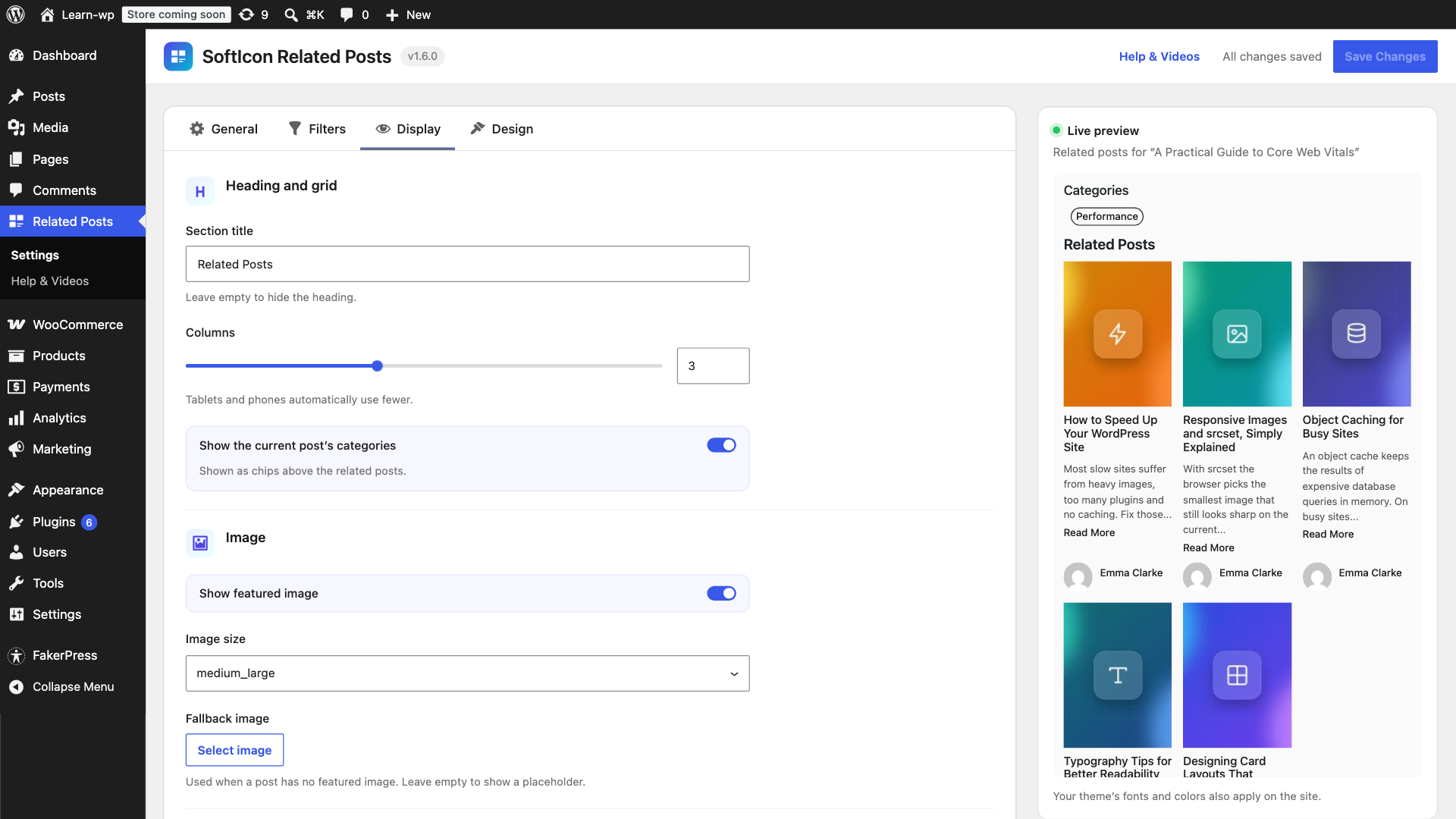
- Show or hide the featured image, excerpt, date, author, read more link and categories
- Fallback image from the Media Library for posts without a featured image
Works everywhere
- Posts, pages and custom post types
- WooCommerce related products matched by product categories and tags
- Related post links in your RSS feed (optional)
- Translation ready
Built for speed
- Related posts are cached and refreshed automatically when you publish, update or delete posts, or change categories and tags
- Random order never runs a slow
ORDER BY RAND()query - Images use
srcset, so phones download small images - One 5 KB stylesheet, loaded only where related posts are shown
Perfect for
- Blogs and personal sites
- News, magazine and content sites
- WooCommerce stores that want related products inside the product description
- Documentation, tutorials, recipes and any site with lots of articles
How it works
- Install and activate the plugin.
- Related posts appear below every post right away.
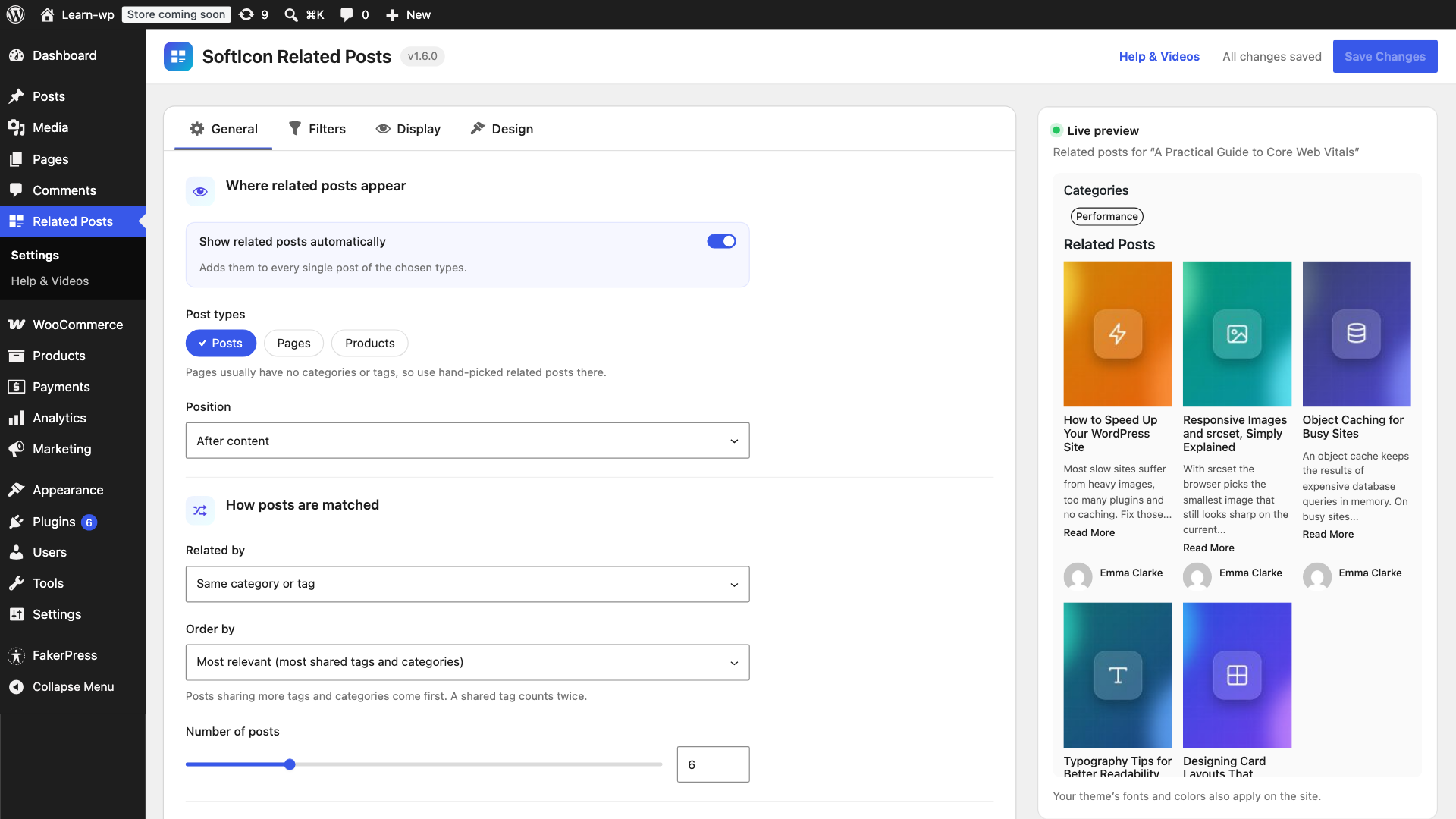
- Open Related Posts Settings to choose how posts are matched, ordered and displayed.
- Optional: add the Related Posts block anywhere, or hand-pick related posts in the post editor.
Shortcode
[softicon_related_posts posts="4" columns="2" relation="tag" orderby="relevance" layout="list" title="You may also like"]
Supported attributes: post_id, posts, columns, relation (category, tag, both, all), orderby (relevance, rand, date, modified, comment_count, title), title, show_categories, show_image, show_excerpt, show_date, show_author, show_read_more, layout (grid, list, minimal), image_ratio (fixed, 16-9, 4-3, 3-2, 1-1), card_style (none, border, shadow), radius, hover_zoom, title_color, text_color, card_bg. Any attribute you leave out uses the value from the settings page.
For developers
The block’s editor script is built from source. The full source code, including src/ and the build setup, is on GitHub: github.com/softiconai/softicon-related-posts. Pull requests are welcome.
Copy templates/posts.php or templates/category.php into yourtheme/softicon-related-posts/ to change the markup.
alrp_related_posts_query_args– filter the related posts queryalrp_related_posts_html– filter the final HTMLalrp_template_path– change which template file is loadedalrp_cache_ttl– cache lifetime in seconds (default one day)alrp_relevance_weights– points per shared term for “Most relevant” (default category 1, tag 2)alrp_related_post_ids– filter or reorder the final list of related post IDsalrp_auto_display– return false to stop the automatic list on a postalrp_wrapper_classes/alrp_wrapper_style_vars– add classes or CSS variables to the wrapperalrp_default_settings,alrp_setting_choices,alrp_sanitize_settings– add your own settingsalrp_block_atts– map extra block attributes to settingsalrp_render_settings– adjust the settings a single list is rendered withalrp_item_after_title/alrp_item_end(actions) – add markup inside each card, e.g. a pricealrp_video_urls– tutorial video URLs shown on the settings page
Settings page (JavaScript, @wordpress/hooks): alrp.settings.tabs adds tabs, alrp.settings.layouts and alrp.settings.layoutArt add layout tiles, alrp.block.inspector adds panels to the block sidebar.
Pro add-on
Everything above is free. SoftIcon Related Posts Pro is an optional add-on with a one-time price. See Related Posts Free vs Pro for the full comparison and Related Posts Pricing for the plans. Pro adds:
- “Read also” boxes inside articles and an “Up next” slide-in
- Carousel, overlay, magazine and numbered layouts, design presets and custom CSS
- Cookieless click analytics, plus “Popular” and “Trending” order
- A Smart order with keyword matching, adjustable weights and cornerstone posts first
- WooCommerce: smarter related products, product cards, “Shop this post”
- Custom field and ACF rules, and a REST endpoint for headless sites
Watch the Pro overview or a tutorial for each Pro feature in the playlist.
Feedback
Missing a feature? Found a bug? Please open a topic in the support forum or an issue on GitHub. We read every message.
Screenshots
Blocks
This plugin provides 1 block.
- Related Posts Show posts that share a category or tag with the current post.
Installation
From your WordPress dashboard
- Go to Plugins Add New Plugin.
- Search for SoftIcon Related Posts.
- Click Install Now, then Activate.
- Related posts now appear below your posts. Go to Related Posts Settings to customize them.
Manual installation
- Download the plugin zip file.
- Go to Plugins Add New Plugin Upload Plugin and choose the zip file.
- Click Install Now, then Activate.
FAQ
-
Install and activate SoftIcon Related Posts. Related posts appear below every post automatically. To place them somewhere else, use the Related Posts block or the
[softicon_related_posts]shortcode. -
Go to Related Posts Settings and set “Related by” to “Same tag”, or to “Same category or tag” to use both.
-
How does “Most relevant” work?
-
Posts that share more tags and categories with the current post come first. A shared tag counts twice as much as a shared category, because tags are usually more specific. Ties are broken by date, newest first.
-
Will it slow down my site?
-
No. Related posts are cached and refreshed automatically when your content changes, so most page views run no related-posts query at all. The front end loads one small stylesheet and no JavaScript.
-
Does it work with WooCommerce?
-
Yes. Tick “Products” under Related Posts Settings Post types and set “Related by” to “Any shared taxonomy”. Related products are matched by product categories and tags and shown inside the product description.
-
Does it work with block themes and Full Site Editing?
-
Yes. Set Position to “Manual (shortcode only)”, then open Appearance Editor, edit the Single Posts template and add the Related Posts block where you want it.
-
Yes. In classic themes, add the “SoftIcon Related Posts” widget to your sidebar. In block themes, add the Related Posts block to a template part or widget area.
-
Yes. In the post editor, use “Pick related posts” in the Related Posts box. Your picks are shown first, in the order you added them, and the remaining slots are filled automatically. Hand-picked posts are shown even if they are in an excluded category.
-
Can I exclude categories or posts?
-
Yes. Under Related Posts Settings Filters you can exclude categories, exclude individual posts by ID and only show posts from the last few months.
-
Open the post in the editor and tick “Hide related posts on this post” in the Related Posts box.
-
Yes. If a post already contains the Related Posts block or the shortcode, the automatic list is not added to that post, so related posts never show twice.
-
Pages have no categories or tags, so nothing is found automatically. Enable Pages under Post types and use “Pick related posts” in the page editor.
-
Why don’t the RSS feed links appear?
-
They are added to the full text of feed items. Check that Settings Reading “For each post in a feed, include” is set to “Full text”.
-
Can I change the design or the HTML?
-
Use the Design options in Related Posts Settings or in the block sidebar. For full control, copy the templates into your theme (see “For developers”).
-
Does it collect any data?
-
The plugin never tracks your visitors and sets no cookies on your site.
After activation, the plugin asks if you want to opt in to security and feature update emails and share basic, non-sensitive diagnostic data (WordPress, PHP and plugin versions, site URL and admin email) with us through Freemius. It is entirely optional: click “Skip” and nothing is sent. See the Freemius privacy policy.
The Pricing page (Related Posts Pricing) opens the Freemius checkout only when you click “Buy now”. The checkout loads from checkout.freemius.com, and what you type there (name, email, payment details) goes to Freemius, our reseller, to complete the purchase. Nothing is sent before you click. See the Freemius terms and privacy policy.
-
Is it translation ready?
-
Yes. All text can be translated, and a translation template is included in the
languagesfolder.
Reviews

Contributors & Developers
“SoftIcon Related Posts – Similar Posts & Internal Linking” is open source software. The following people have contributed to this plugin.
Contributors
Translate “SoftIcon Related Posts – Similar Posts & Internal Linking” into your language.
Interested in development?
Browse the code, check out the SVN repository, or subscribe to the development log by RSS.
Changelog
1.7.1
- New: A short welcome dialog on the Plugins page after the first activation: allow update emails or skip, then go straight to the settings
- Improved: “What is shared?” in the dialog lists exactly what the optional opt-in sends
- Changed: Plugin author is now softiconai
1.7.0
- New: Related posts stay in the current language on WPML and Polylang sites
- New: “Free vs Pro” page with a searchable feature table, and a “Pricing” page with plans and FAQ
- New: Pro features are shown next to the free settings they extend, clearly marked “PRO”, with a link to the plans
- New: Optional opt-in for update emails (powered by Freemius, you can skip it)
- New: Developer hooks to extend settings, placement, layouts, cards, the settings page and the block sidebar
- Improved: The live preview loads its images before it switches, so changing the design no longer flashes empty boxes
- Improved: A layout or order from a deactivated add-on falls back to the default instead of breaking the design, and comes back when the add-on returns
- Improved: Settings that belong to a deactivated add-on are kept when you save
- Fix: WooCommerce products hidden from the catalog no longer appear in related lists (out of stock ones too, when the shop hides them)
1.6.1
- Improved: The block sidebar uses the plugin’s own lighter controls
- Improved: Smaller editor stylesheet
1.6.0
- New: Pages and custom post types support
- New: “Any shared taxonomy” relation for custom taxonomies
- New: Classic sidebar widget
- New: Related post links in the RSS feed (optional)
- Improved: The block now finds the current post in widget areas and template parts
- Security: The shortcode only targets publicly viewable posts and post types
- Security: Excerpts now go through WordPress’ excerpt filters, so membership plugins can restrict them
- Improved: Saving drafts no longer clears the related posts cache
- Improved: Search results in “Pick related posts” close after you pick a post
- New: Video tutorials on YouTube, linked from Related Posts Help & Videos
- New: Activating the plugin opens Related Posts Settings (not on bulk activation or WP-CLI)
- New: Settings page rebuilt in React with a live preview that updates before you save, Cmd/Ctrl+S to save and a warning for unsaved changes
- New: Related Posts menu in the admin sidebar with Settings and a Help & Videos page (old Settings Related Posts links redirect)
- Improved: Related Posts block rebuilt with General and Style tabs, plus title, text and card background colors
1.5.0
- New: List and Minimal layouts
- New: Design options for image ratio, card style, corner radius, hover zoom and colors
- New: Design panel and text/background colors in the Related Posts block
- Change: Text colors now follow your theme instead of being fixed to black
1.4.0
- New: “Most relevant” order, ranking posts by shared tags and categories
- New: Pick related posts by hand per post
- New: Exclude categories and posts
- New: Only show posts from the last N months
1.3.0
- New: Related Posts block with sidebar options and live preview in the editor
- New: Automatic related posts are skipped on posts that already contain the block or shortcode
- Change: The “Hide related posts on this post” option now also hides the shortcode and block on that post
1.2.0
- New: Related posts are cached and refreshed automatically when posts, categories or tags change
- New: Pick the fallback image from the Media Library
- New: Theme template overrides
- New: Translation template (.pot)
- Improved: Responsive images with srcset
- Improved: Random order no longer uses a slow ORDER BY RAND() query
- Fix: A broken category link no longer causes a PHP error
1.1.0
- New: Settings page with display and query options
- New: Related by tag, or by category and tag
- New:
[softicon_related_posts]shortcode - New: Hide related posts per post
- New: Before / after content / manual position
- New: Show date, fallback image, image size, column count
- Improved: Responsive layout, lazy loaded images, translatable strings
- Security: Related posts no longer show excerpts of password-protected posts
- Fix: Author avatar showed the current post’s author instead of the related post’s author
- Fix: Posts without categories showed random unrelated posts
- Fix: Empty “Related Posts” heading when no related posts were found